
4 min read · Updated July 2026 · Reflects RollCall Parent App version 4.0.0
Set up regular term travel
Book a morning and afternoon seat for the whole term in one sitting, then forget about it.
- Who this is for
- Parents and carers setting up a child's regular bus travel for the term.
- Where
- The RollCall Parent App, on the Bookings tab.
- You will need
- You are signed in, your child is linked to your account, and your school's booking window is open.
Watch the walkthrough
Setting up term bus bookings
The term booking wizard from start to finish: choosing your child and the term, picking a morning stop and the days they travel, then an afternoon stop (the same one, if that suits), and checking the summary before you confirm.
2 min 36 sec · Watch on Loom
On this page
Short on time?
Work through sections 2 to 5 in one sitting, start the booking, pick your morning and afternoon stops, then review and confirm. That sets up the whole term.
What this guide covers
Set up your child's bus travel once at the start of term and you are done until the next one. You pick a morning stop, an afternoon stop, and the days of the week, and your child has a reserved seat on every school day you choose.
This guide walks through the term booking wizard from start to finish: starting the booking, choosing your stops and days, checking the summary, and confirming. It also covers how to book just one direction and how to change a booking later.
Start a term booking
Everything to do with your child's travel lives on the Bookings tab. A term booking is the third choice behind the Make a change button.
Open the Bookings tab. Tap Bookings in the bar along the bottom. The Today section sits at the top, with Week View, Term View, and Calendar View below.
Check the right child is selected. Your child's name shows in the dropdown at the top right. If you have more than one child, tap the name and pick the child you are booking for.
Open the term booking wizard. Tap Make a change, then tap the Long-term Bus Booking card, the third one, with the route icon. The other two cards are for one-off changes and absences, which you can do later.
The wizard opens on its first step, showing a Step N of M label so you can see how far you have to go.
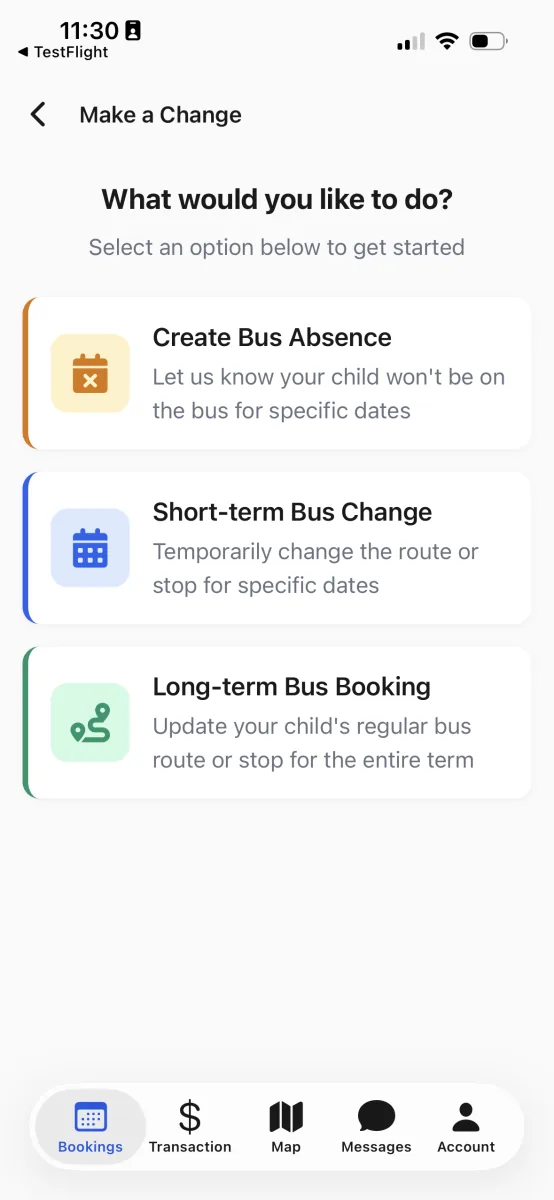
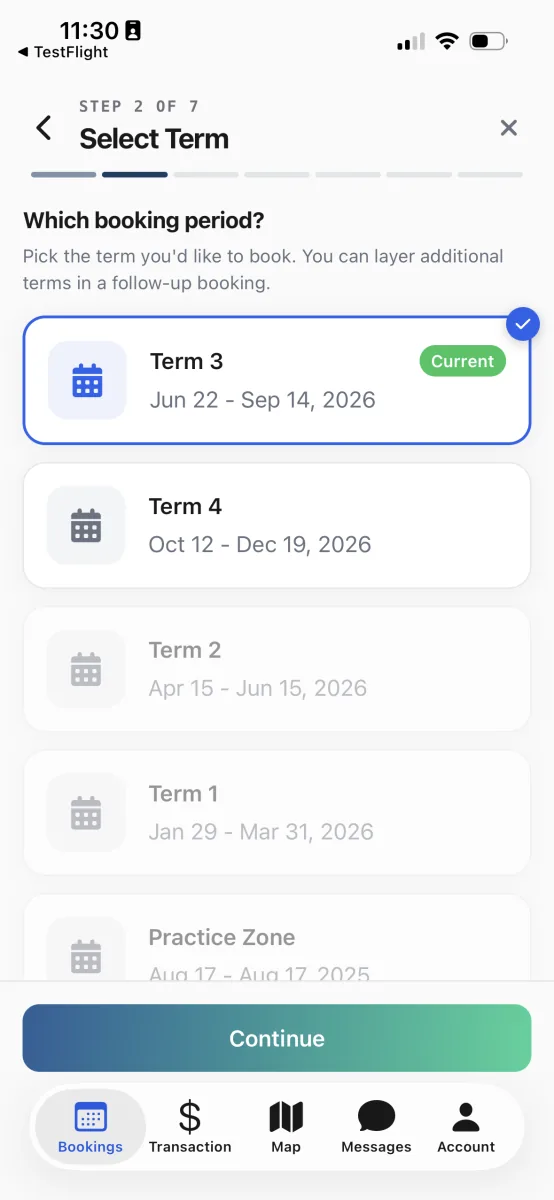
Long-term Bus Booking, the third card, starts the term booking wizard. Confirm the child, then pick the term. Tap your child's card and tap Continue. On the next step, tap the term you want and tap Continue. The term running now carries a Current badge.
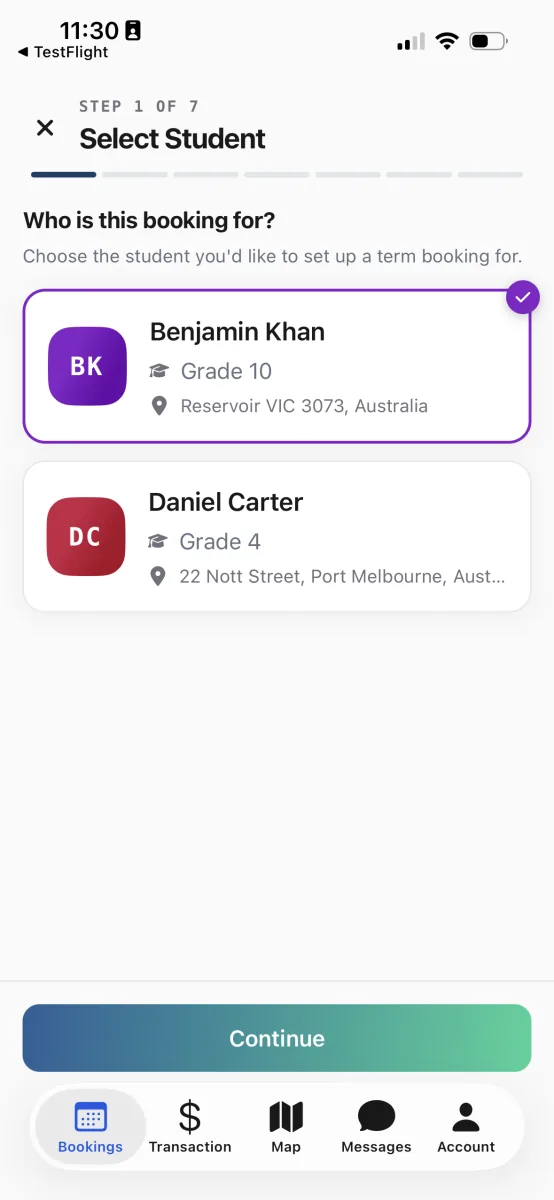
The wizard opens by asking which child the booking is for.
Tip
Setting up more than one child? Do them one at a time. Finish the first child's booking, switch to the next child in the dropdown, and run the wizard again.
Choose your morning stop and days
The morning side comes first. The app shows a map centred on your home with the nearest stops, each route in its own colour and your school marked with a school icon.
Pick your morning stop. Tap a stop on the map, or tap one in the list below. The list shows the route, the walking distance, the estimated arrival, and how many seats are left. Tap Continue.
A card highlights your chosen stop with its route name and arrival time.
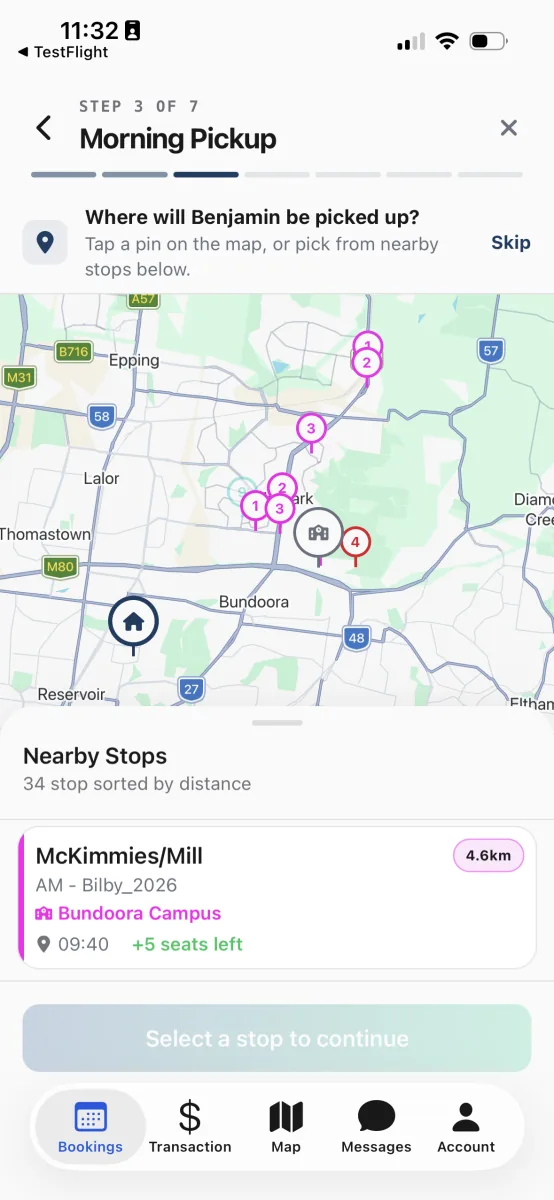
The map opens centred on your home, with the nearest stops sorted by distance. Choose the days of the week. Five pills, Mon to Fri, are all switched on to start. Tap any pill to switch a day off, or tap it again to switch it back on. A line below tallies the trips across the term as you go, and at least one day stays selected. Tap Continue.
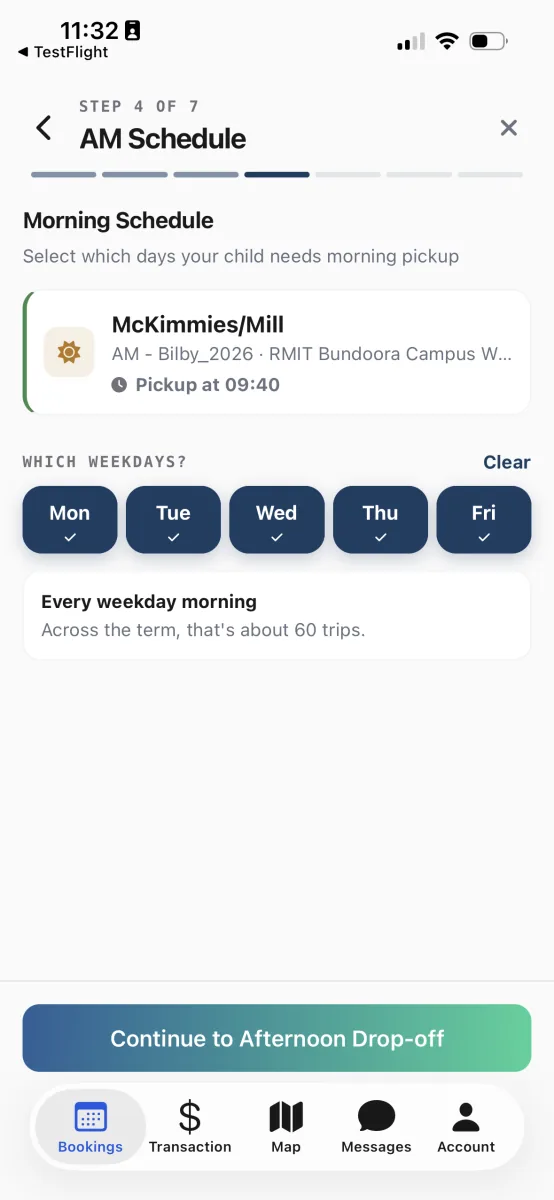
All five weekdays start selected. Switch off any day you do not need.
Worth knowing
If your child only catches an afternoon bus, tap Skip in the top corner of the stop step. You need to keep at least one service, so the app will not let you skip both. Try to skip both and it shows an At least one service is required message.
Choose your afternoon stop and days
The afternoon side works the same way. If your child gets dropped at the same stop they catch in the morning, there is a shortcut to save you picking it twice.
Reuse the morning stop, or pick a new one. Tap the Use same stop as morning pickup card above the map to copy your morning choice across. Or tap a different stop on the map or in the list for the afternoon. Tap Continue.
Choose the afternoon days. Just like the morning, all weekdays start switched on. Switch off any afternoon your child does not need a bus home, for example a day a grandparent collects them. Tap Continue.
Worth knowing
If the stop you use in the morning is not served by an afternoon route, the app shows a Morning stop unavailable message and leaves the shortcut off. Pick an afternoon stop on the map instead.
Review and confirm
The last step gathers everything in one place so you can check it before anything is booked.
Check the leg cards. You see a card for each leg you set up, the morning, the afternoon, or just one if you skipped a service, showing the stop, route, estimated arrival, and the days of the week. To fix anything, tap the back chevron and adjust, then return to this step.
Tap Confirm Booking. When the summary looks right, tap Confirm Booking. A green tick screen confirms your term booking has been submitted. Tap Done to return to the Bookings tab.
Your child's regular travel now shows in Week View, Term View, and Calendar View for the term.
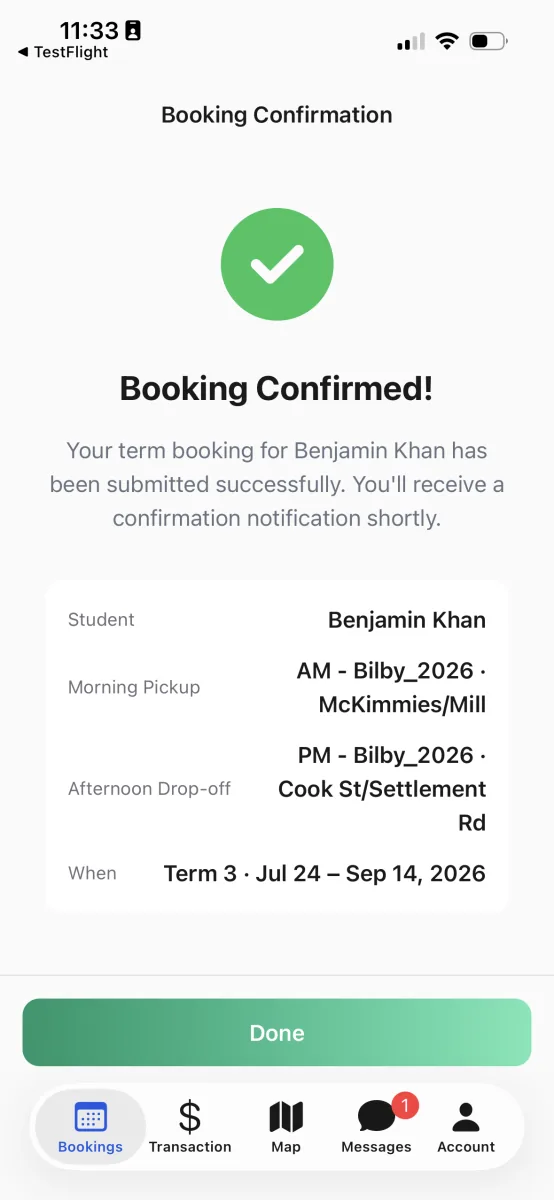
The green tick means the term booking has been submitted.
Change a term booking later
Plans change, and a term booking is easy to adjust. How you do it depends on whether you are changing the regular pattern or just a day or two.
Change the regular pattern. Run the term booking wizard again from Make a change, Long-term Bus Booking. When your child already has bookings for the term, the wizard shows a summary and offers Edit Existing Bookings or Add More Bookings.
Change just a day or two. For a one-off stop swap or a single day, use Short-term Bus Change from the Make a change screen instead. To tell the school your child will be away, use Create Bus Absence.