
4 min read · Updated July 2026 · Reflects RollCall Parent App version 4.0.0
Manage day-to-day bookings
See what's booked for the week ahead and make small changes to individual days.
- Who this is for
- Parents and carers adjusting a child's existing term booking week by week.
- Where
- The RollCall Parent App, on the Bookings tab.
- You will need
- You are signed in and your child has a term booking already in place.
Watch the walkthrough
Managing your bookings day to day
The Bookings tab as you use it week to week: reading the Today section, looking ahead in Week, Term, and Calendar views, and opening a day to see its route, stop, and expected time. It ends on Short-term Bus Change, where you move one day's stop or add the bus on a day your child does not usually travel.
1 min 50 sec · Watch on Loom
On this page
Short on time?
Sections 4 and 5 are the ones you will use most, changing a stop for one day and adding or removing a single day. Start there when a plan changes.
What this guide covers
Family life rarely fits neatly inside a school term. A sports day pulls your child out on Wednesday afternoon, a class needs a different stop for a week, a grandparent collects them on Fridays. You can handle these small changes a day at a time, and your regular term booking stays exactly as it is.
This guide shows you how to see what is booked for the days ahead, change the stop on a single day, and add or remove a booking for one day, all from the Bookings tab.
See what's booked
The Bookings tab is your home base. The Today section at the top answers what is happening today, and three views below let you look further ahead.
Check the Today section. Open the Bookings tab. The Today section sits at the top and shows who is travelling today, and whether it is the morning bus, the afternoon bus, or both.
Switch between the three views. Below Today, tap Week View for this week day by day, Term View for the regular pattern this term, or Calendar View to scan further ahead month by month.
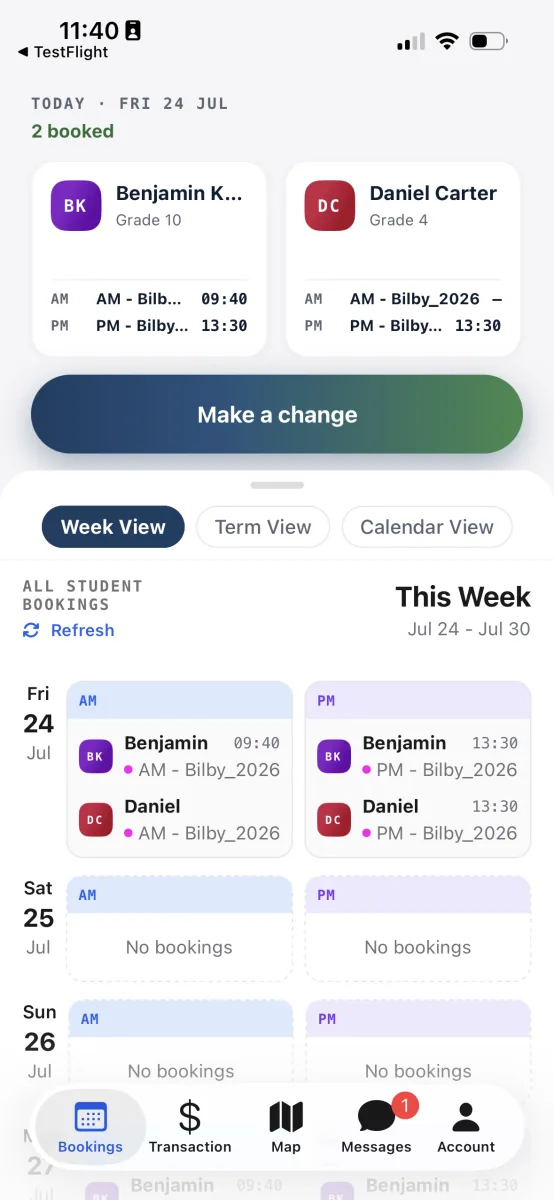
Week View lays out this week's travel day by day, with Today's summary up top. Open a day for detail. Tap any day to open the Day Detail panel, which lists each journey with its route, stop, and expected time. A Make a change for this day button jumps you straight into a change.
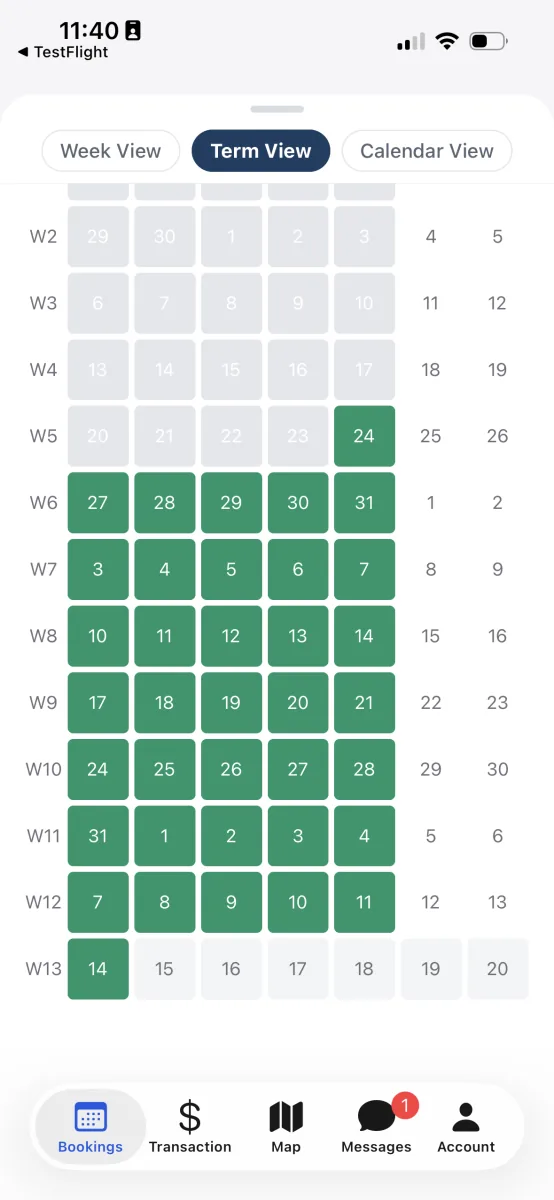
Open the ten-day timeline
For finer control, the Short-term Bus Change screen lays out the next ten days as a simple timeline, one row per day with a slot for the morning and afternoon bus.
Open Short-term Bus Change. From the Bookings tab, tap Make a change, then tap the Short-term Bus Change card, the second one, with the calendar icon.
Read the slots. A booked slot shows the route, the stop, and a small coloured dot for the route. An empty slot shows an Add button. If your child is marked absent that day, the slot shows that instead.
You can read your child's travel for the next week and a half on one screen.
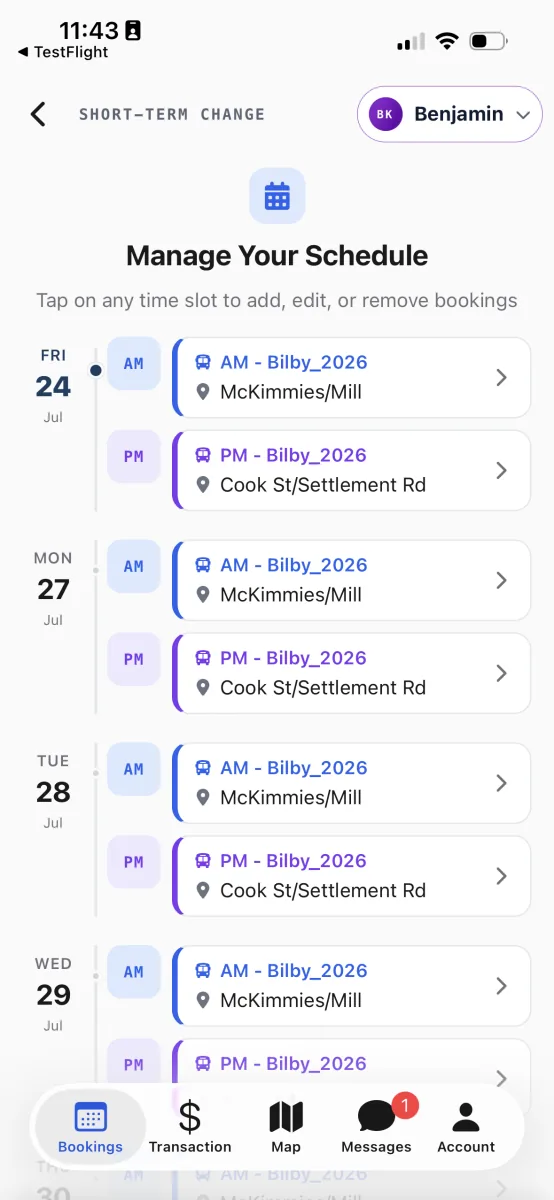
The timeline: every day ahead, with its morning and afternoon slots.
Change a stop for one day
Say your child needs a different drop-off just this Tuesday. You change that one day, and every other Tuesday keeps using your regular stop.
Tap the day and service. On the timeline, tap the booked slot for the day and service (AM or PM) you want to change. A sheet slides up showing the date, the current stop, and three options: Edit Booking, Mark as Absent, and Delete Booking.
Tap Edit Booking. A map opens showing the stops near your home for that day and service, with a Currently line reminding you which stop your child is on now. Tap a different stop on the map or in the list.
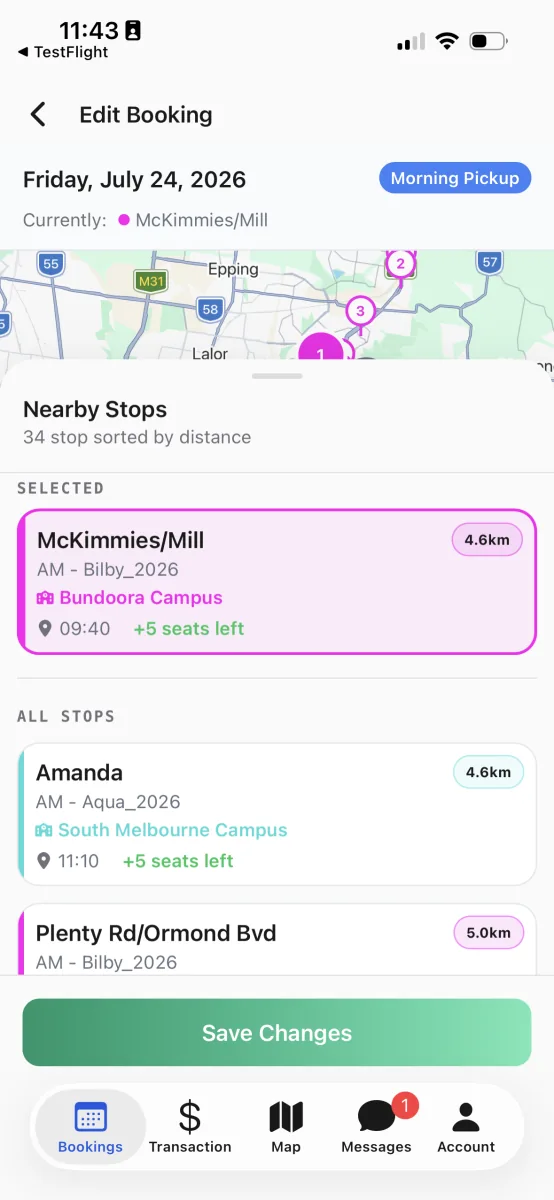
The Currently line reminds you which stop the day uses now. Save the change. Tap Save Changes. A green tick screen confirms the new stop, route, and date. Tap Done to return to the timeline, where the day now shows the new stop.
Tip
Changing a single day does not rewrite your term booking. If you want every Tuesday to use a different stop for the rest of term, use Long-term Bus Booking instead.
Add or remove a single day
You can add the bus on a day your child does not usually travel, or take it away on a day they are being collected another way.
Add a one-off booking. On the timeline, tap the Add button on an empty slot. The stop map opens for that day and service. Pick a stop, tap Add Booking, then tap Done on the confirmation screen.
Remove a booking. Tap a booked slot and choose Delete Booking. A confirmation shows the date and service. Tap Delete, and the slot returns to an empty Add button. Your term booking stays in place; only that one day is removed.
Worth knowing
Deleting a day is not the same as telling the school your child will be away. If they are sick or being collected, use Mark as Absent or Create Bus Absence so the school has a clear record.
How your change reaches the bus
There is no separate send button. Saving the change is the message. The school sees the new arrangement straight away, and the driver's list updates the next time their device picks up fresh data, so the right stop is expected on the right day.
One thing to know: once a bus has started its run, that day's bookings on it are locked so the driver's list stays reliable. If you try to change a trip that has already begun, the app tells you, and you can pick another day or ring the school office if it is urgent.