4 min read · Updated July 2026 · Reflects RollCall Parent App version 4.0.0
Stay informed with notifications
See what alerts you get, read them in the Messages tab, and choose which ones reach you.
- Who this is for
- Parents and carers who want timely updates about their child's bus and account.
- Where
- The RollCall Parent App, on the Messages tab and the Account tab.
- You will need
- You are signed in, your child is linked to your account, and push notifications are allowed on your phone.
Watch the walkthrough
Turning on notifications and finding your way around
Turning on push notifications, so you hear when your child scans on or off the bus, when a service update comes through, and when the school sends a note. It ends with a quick tour of the tabs along the bottom: Bookings, Transactions, Map, Messages, and Account.
3 min 13 sec · Watch on Loom
On this page
Short on time?
Do sections 4 and 5 first, turn on push notifications and choose which alerts reach you. That is the setup that matters most.
What this guide covers
The most useful updates reach you the moment they happen: your child scanning onto the bus, scanning off, the bus running late, and messages from the school. Turn on notifications once and the app keeps you posted through the day, even when it is closed.
This guide shows you what notifications you get, where to find them on the Messages tab, how to turn on push notifications, and how to choose which alerts reach you so the app fits your family.
What notifications you get
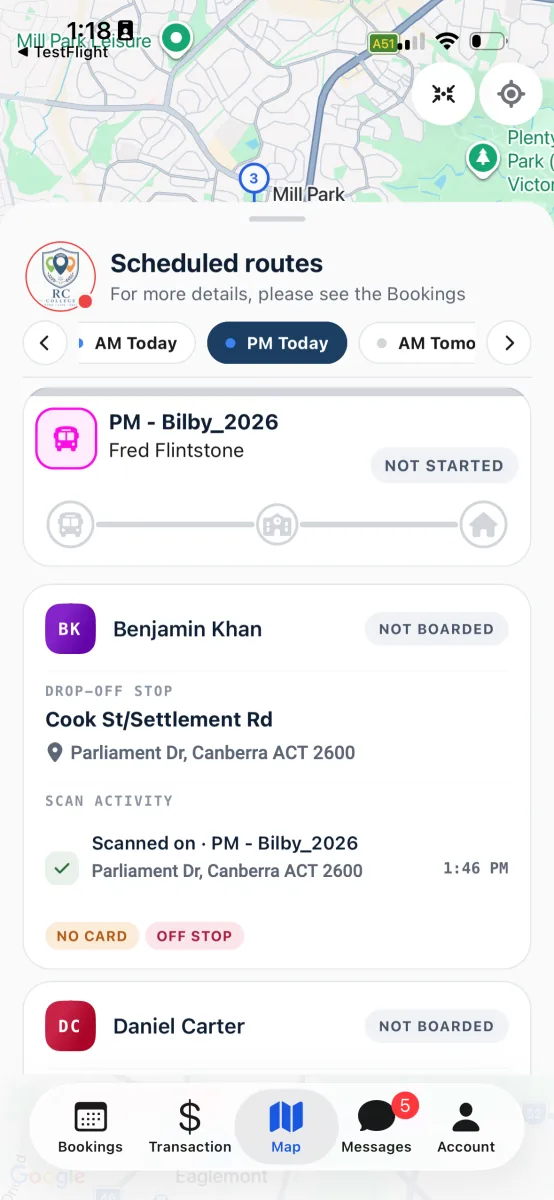
Notifications are the short updates the app sends about your child's travel and account. The common ones are scan-on and scan-off confirmations when your child taps on and off the bus, bus updates such as a delay or a route change, receipts and low-balance reminders, and messages the school sends to families.
Each alert arrives in your inbox on the Messages tab, and, if you have turned it on, as a push notification that pops up on your phone straight away. Some also arrive by email. A school message is one kind of notification too, sent by the school to keep every family in the picture.
Read your alerts in the Messages tab
Every notification lands in your inbox on the Messages tab, whether or not you saw the push at the time. It is the record you can always come back to.
Open the Messages tab. Tap Messages in the bar along the bottom. Your notifications inbox is the first thing you see, grouped by day with the newest at the top.
Tap a notification to read it. Tap any row to expand it and read the full message. A coloured dot marks anything you have not read yet, and it clears the moment you open the row.
Filter the list. Tap the chips above the list to narrow it down: All, Unread, Route for bus updates, and Financial for receipts and balance messages. Tap Mark all as read to clear every dot in one go.
You are caught up, and the badge on the Messages tab clears along with the dots.
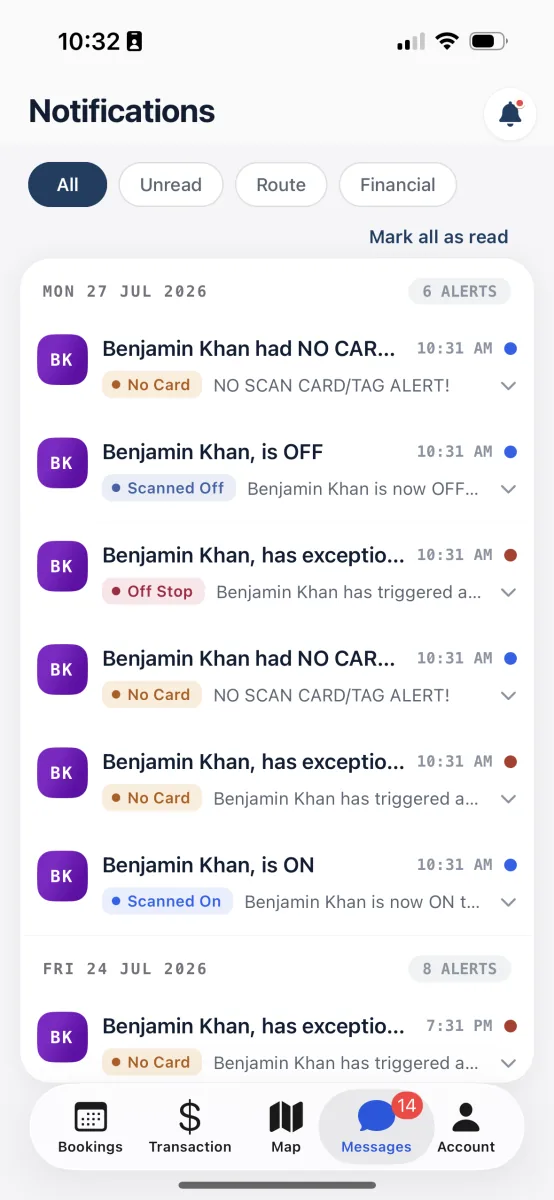
The inbox keeps every alert, grouped by day, with unread dots on anything new.
Worth knowing
If your inbox is empty, you see a bell icon with a green tick and the words You're all caught up. New alerts appear here as soon as they arrive.
Turn on push notifications
Push notifications are the pop-ups your phone shows the moment something happens, even when the app is closed. They are worth turning on for the time-sensitive updates, like a scan-on at the morning stop.
Say yes to the in-app prompt. The first time you sign in, a Stay Connected with RollCall screen appears. Tap Enable Push Notifications, then tap Allow when your phone asks.
Turn them on in your phone settings if you missed the prompt. If you tapped Don't Allow, or never saw the prompt, open your phone's Settings, find the RollCall Parent App, and switch Notifications on. On an iPhone this is under Settings, Notifications, RollCall. On an Android phone it is under Settings, Apps, RollCall, Notifications.
Your phone can now show RollCall alerts as they arrive.
Tip
If a Focus or Do Not Disturb mode is switched on, your phone may hold alerts back even when RollCall is set up correctly. Check that too if nothing is coming through.
Choose which alerts you get
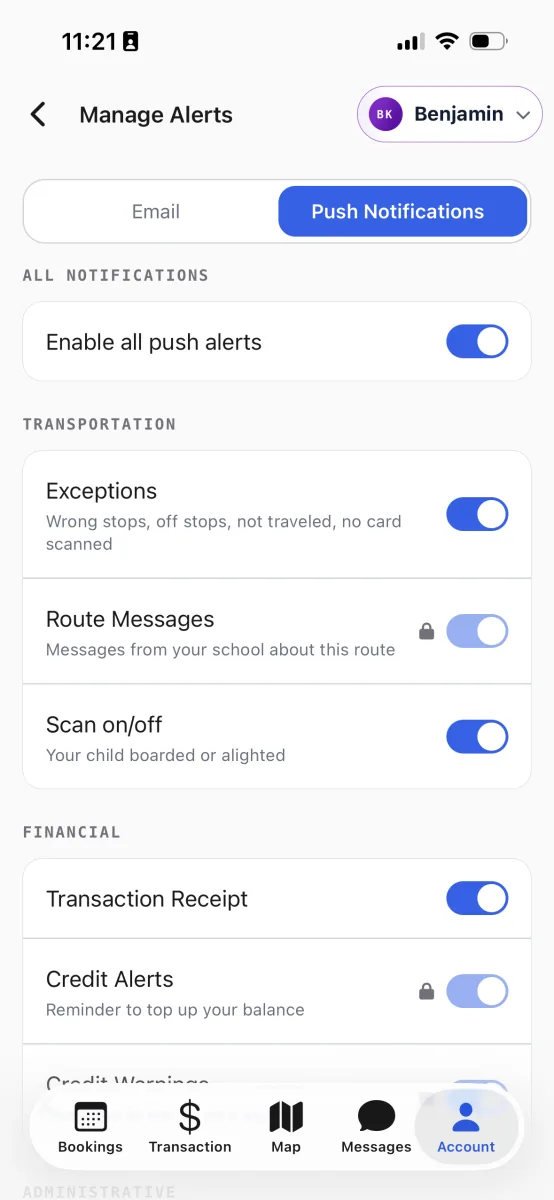
Manage Alerts is where you decide which alerts reach you, and whether they come by push, email, or both. You can be loud about one thing and quiet about another.
Open Manage Alerts. From the Account tab, open Settings and tap Manage Alerts. You can also tap the bell button at the top of the Messages tab to jump straight there.
Pick the child and the channel. Choose the child from the dropdown at the top, then tap Email or Push Notifications. Each child and each channel has its own set of switches, so set them up one at a time.
Turn alerts on or off. Use the master switch at the top to change everything in that channel at once, then flip individual rows to fine-tune. Your choices save the moment you tap a switch, so there is no separate save button.
The app now sends only the alerts you want, on the channels you chose.
Worth knowing
A few alerts stay on for every family, such as route messages and low-balance reminders. They show a small padlock and read Always on, because the school needs those to reach everyone.