
3 min read · Updated July 2026 · Reflects RollCall Parent App version 4.0.0
Top up and track payments
Read your balance, see what you've been charged for, and top up when it runs low.
- Who this is for
- Parents and carers who pay for school transport through the app.
- Where
- The RollCall Parent App, on the Transactions tab.
- You will need
- You are signed in, your child is linked to your account, and your school takes payments through the app.
On this page
Short on time?
Sections 2 and 4 cover the essentials, reading your balance and adding funds when it runs low. The rest is there when you want the detail.
What this guide covers
Bus travel is paid from a balance you top up ahead of time. Each trip your child takes is charged against that balance, so keeping it topped up keeps their seat covered. This guide shows you how to read your balance, look through what you have been charged for, add funds, and check that a top-up has landed.
Not every school collects bus fees through the app. If yours does not, the Transactions tab is hidden and there is nothing to top up here. Everything below applies to schools that do take payments in the app.
See your balance
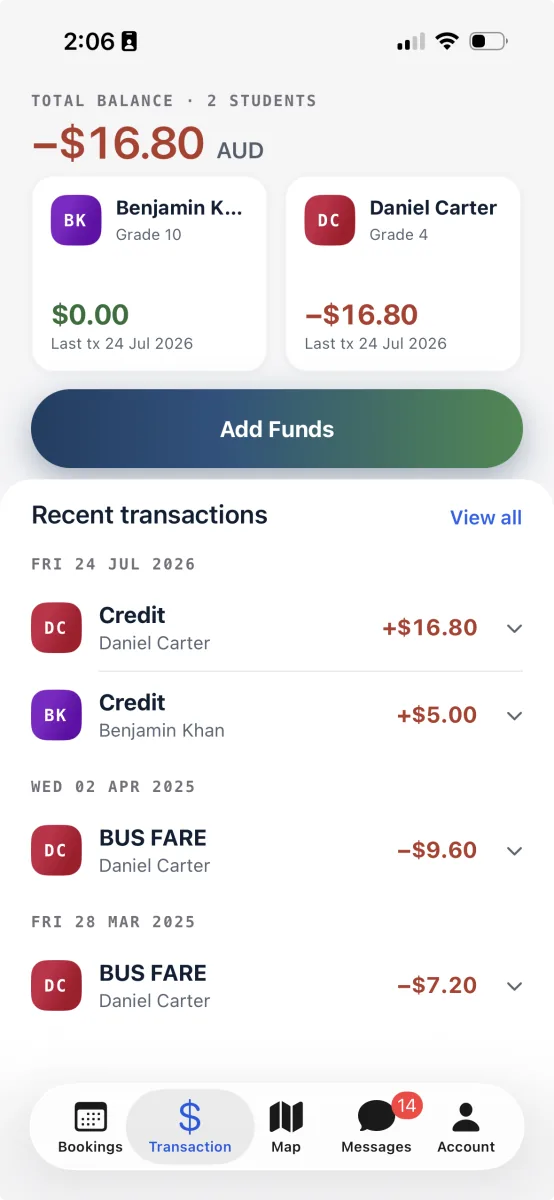
The Transactions tab is where your money sits in the app. It opens on your balance, so a glance tells you where you stand.
Open the Transactions tab. Tap Transactions in the bar along the bottom. Your total balance across all of your children sits at the top.
Read the total. A balance in the ordinary text colour means you are square or in credit. A balance in red means the account is owing and could use a top-up.
Check each child. Below the total, a card for each child shows their own balance and the date of their last transaction. Swipe sideways if you have more than two children.
You can see the family total and how it splits across each child.
Look through your transactions
Every charge and every top-up is recorded, so if a balance looks off you can scroll back and see what happened.
Glance at recent transactions. The Transactions tab lists your most recent transactions, newest first, with charges in red and top-ups in green.
Open the full list. Tap View all to open the All Transactions screen, a single list across all of your children grouped by day. Tap a row to expand it and see the detail, including the receipt number.
Look at one child. Back on the Transactions tab, tap a child's card to see just that child's history, with their balance in the header.
You can trace any charge or top-up across the family or for one child.
Add funds
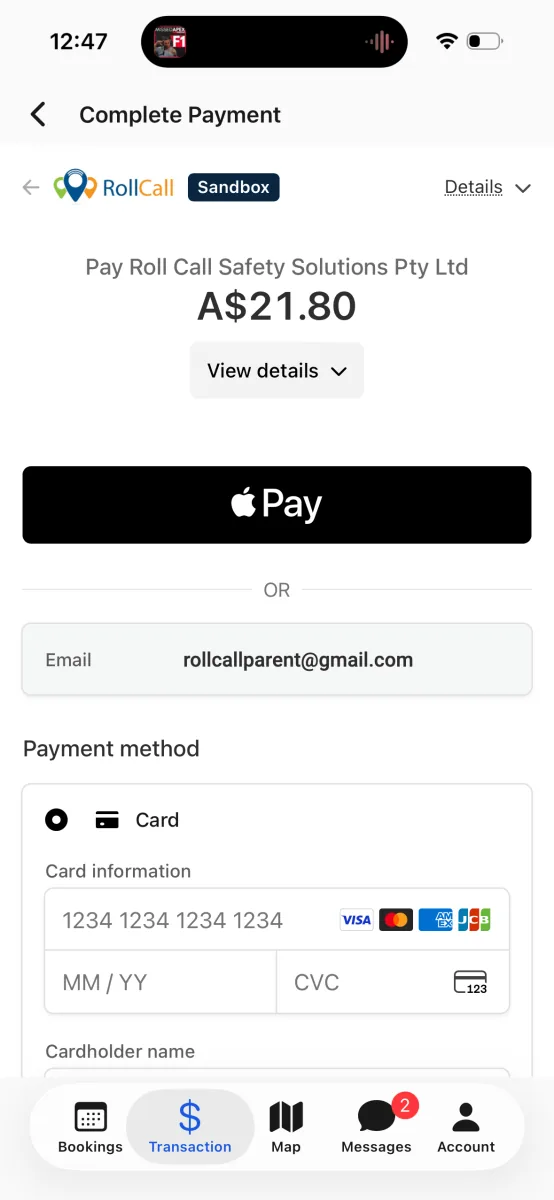
When a balance is getting low, you top up from the Transactions tab. You choose an amount, check the total, and complete the payment through your school's payment provider.
Tap Add Funds. On the Transactions tab, tap the Add Funds button under your total balance.
Choose a child and an amount. Tap a child's row, then set an amount using the quick $10, $20, and $50 buttons, the plus and minus steps, or by typing the figure you want. Tap Add to stage it. Repeat for any other child you want to top up in the same payment.
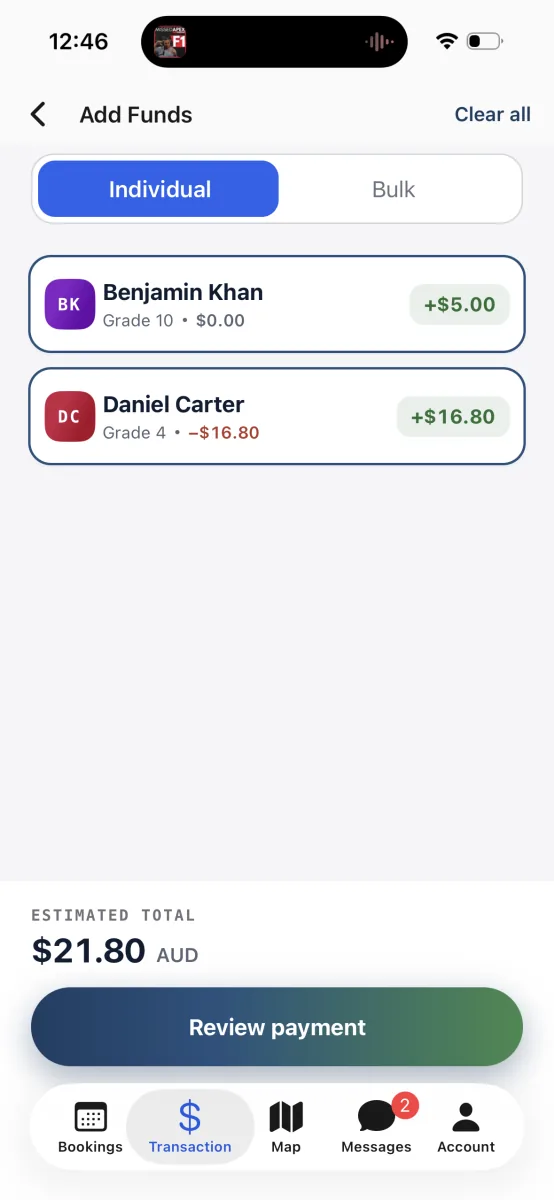
Stage an amount per child; the estimated total updates as you go. Review, then pay. Tap Review payment and check the total that will be charged to your card. When it looks right, tap Confirm payment and finish the payment through your school's payment provider.
The app shows the result, then brings you back to the Transactions tab with your updated balance.
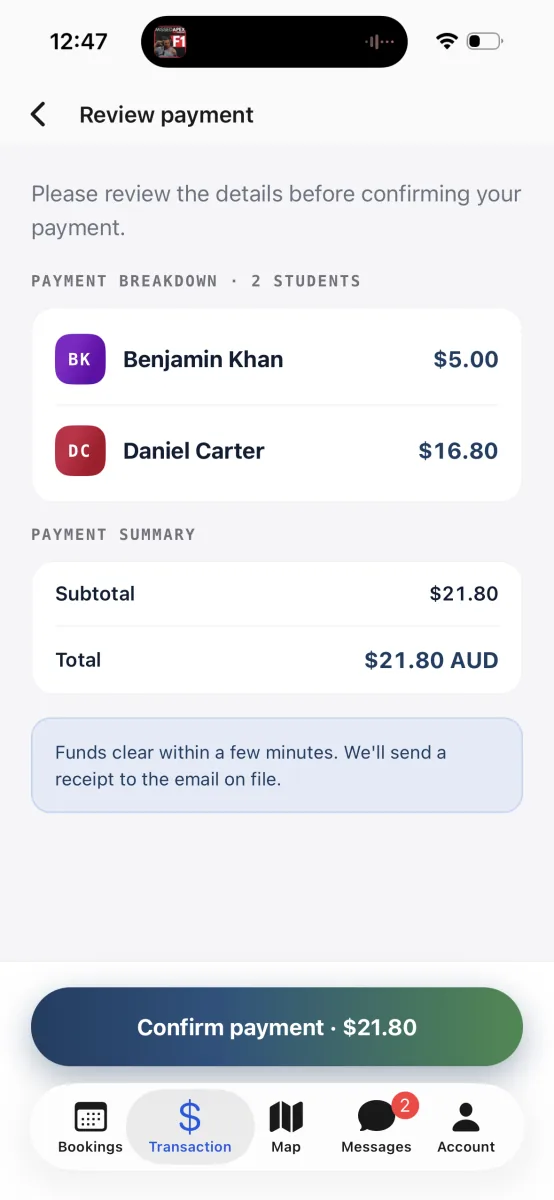
The breakdown and total to check before you confirm.
Check a top-up worked
After a payment, it is easy to confirm the money has landed. Your balance and your transaction list are the two places to look.
Check your balance. Back on the Transactions tab, your total balance and the child's card show the new amount. A top-up usually appears quickly.
Check your transaction list. The top-up also shows as a new entry in your recent transactions and in the full list, so you have a record of it.
You can see the money is on the account and get on with your day.
Worth knowing
If the new amount has not appeared after a short while, check again in a moment or contact your school office. If something goes wrong with a payment, the app tells you; if you are unsure whether it worked, check your transaction list or contact your school office.