
News1 October 2026
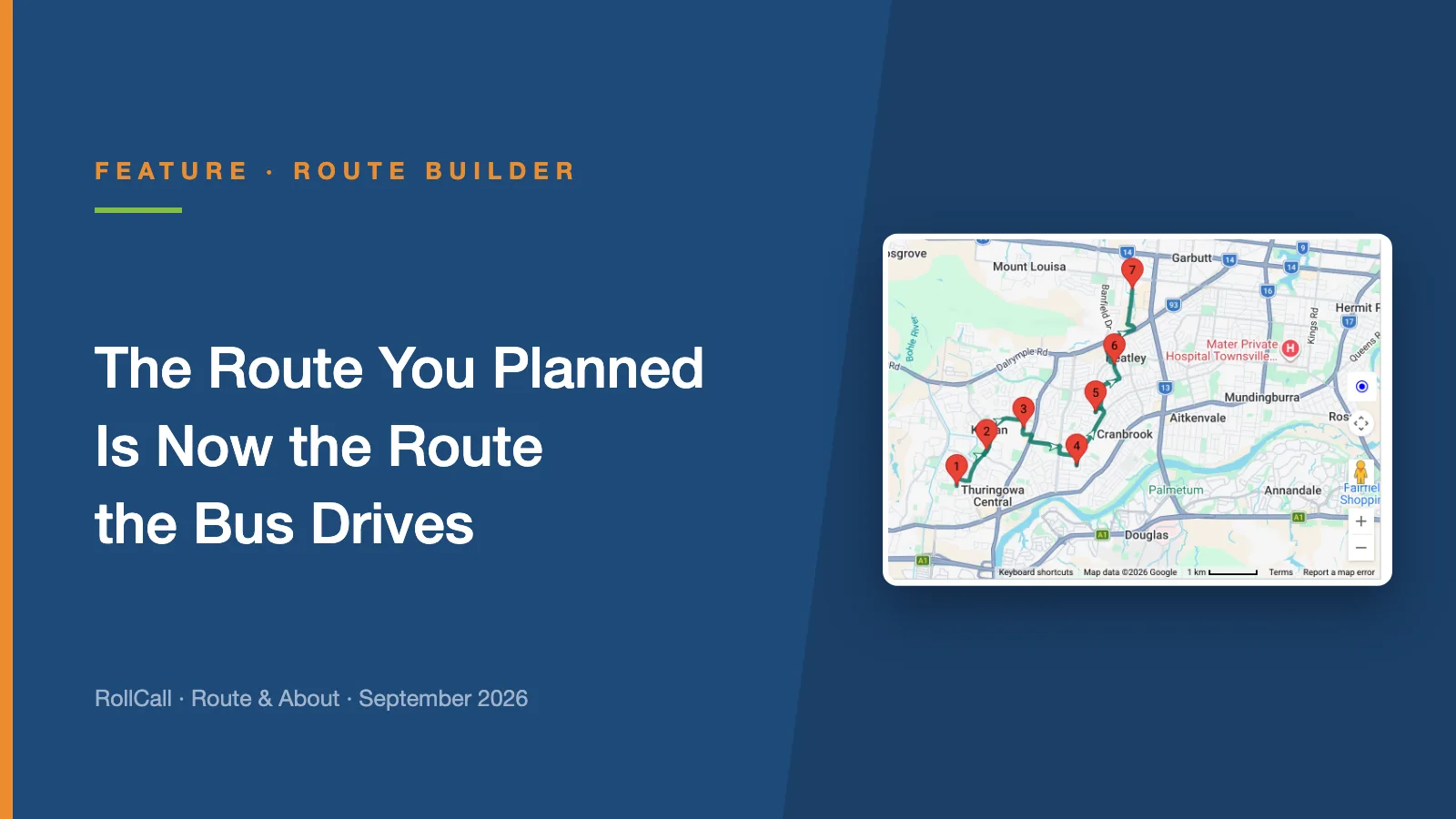
The Route You Planned Is Now the Route the Bus Drives
Until now, driver navigation found its own way between your stops. Plan Navigation lets you set the exact road, and the driver app follows it turn by turn.
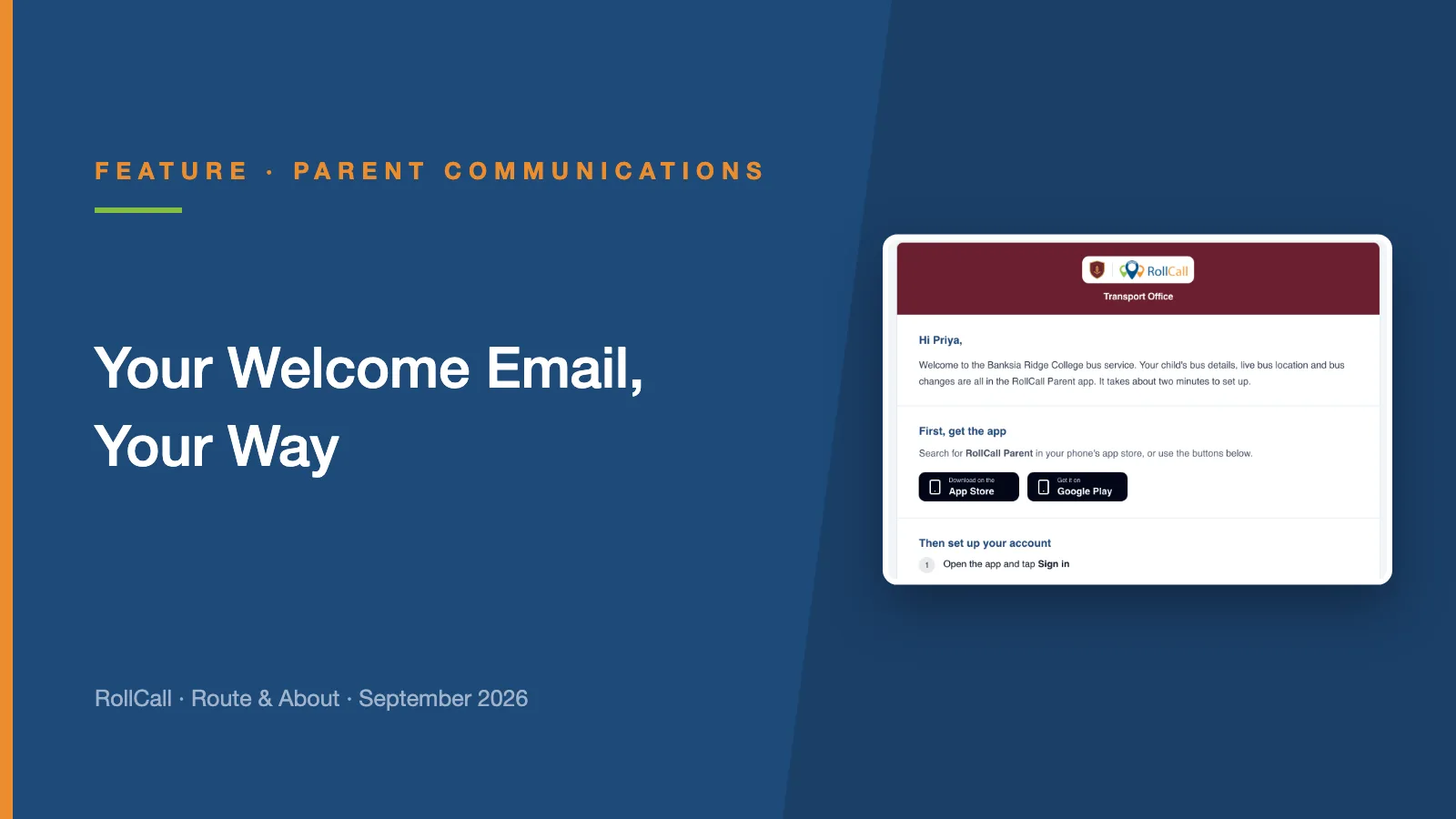
Schools now run the first email every family gets from RollCall.
The welcome email is the first thing a new family receives from RollCall. It tells them how to get the Parent App, how to sign in, and what they can do once they are in.
Until now, every change to it went through RollCall Support. New wording, a different contact, your logo: each one was a ticket, and a wait.
Not any more. The welcome email is now yours to run.
Prefer to see it? This two-minute walkthrough shows where to find the builder and how to make it your own.
In RollCall, open Settings, then select Parents. On the far right of the page, open the Welcome Email drop-down menu and choose Welcome Email Editor. The builder lists the email's seven sections on the left, with a live preview beside them showing exactly what a family will receive.
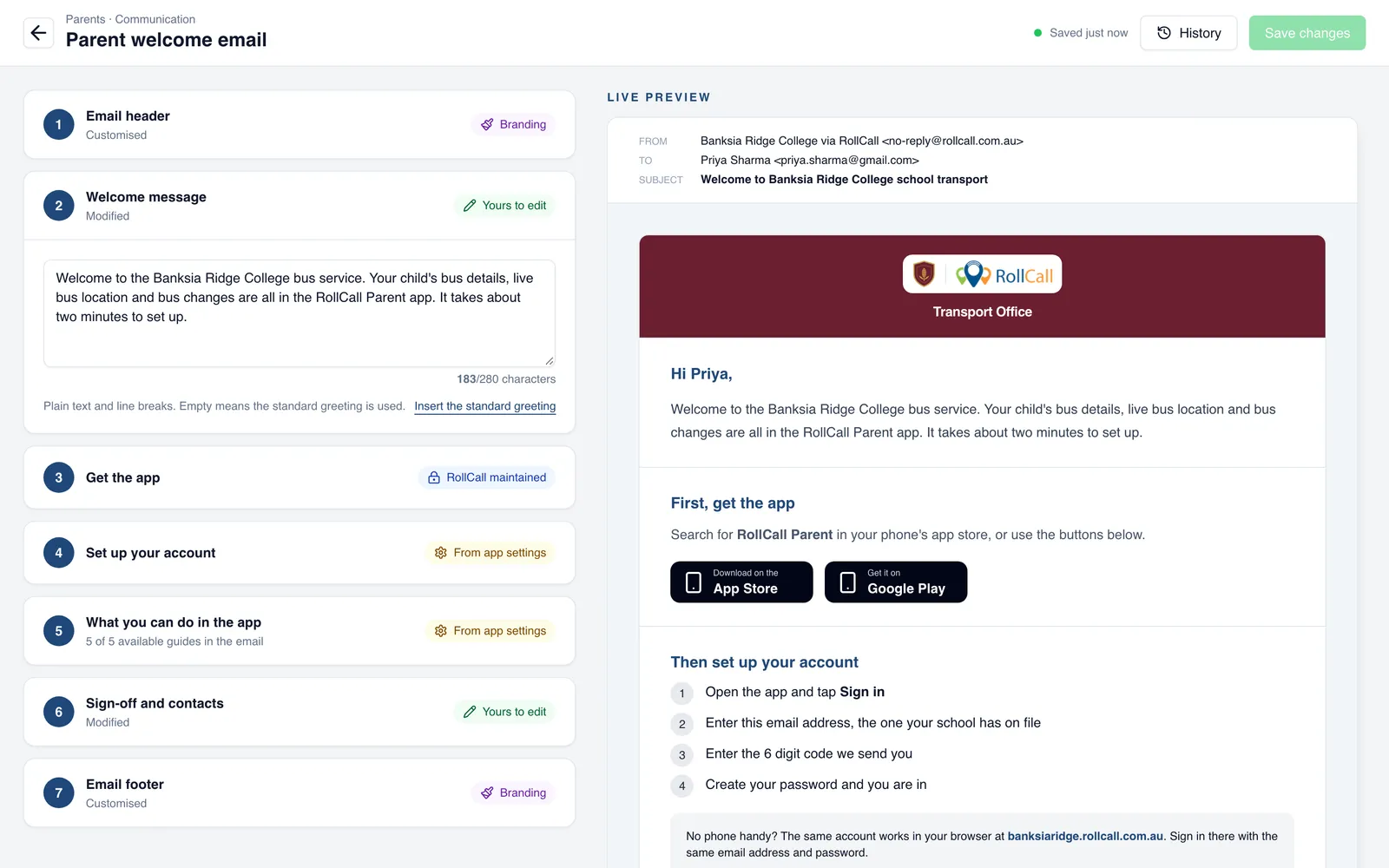
Each section carries a label, so you can see at a glance which parts are yours.
The Email header and Email footer carry your school's branding. Your school logo sits alongside the RollCall logo in both, and you can add a short line under the logos, such as "Transport Office".
Start from one of five palettes: RollCall navy, Forest, Maroon, Charcoal or Sand. Each one is contrast-checked, so the email stays easy to read. On a dark background, the logos sit on a light plate so both stay clear.
Two sections are yours to write. The Welcome message is the greeting at the top, up to 280 characters. Sign-off and contacts closes the email, and is the place for your transport team's phone number, email address and hours.
Not sure where to start? The welcome message can go back to the standard greeting in one click.
What you can do in the app introduces the Parent App features your families can use, such as the live map, bookings, top ups and messages. It follows the features you have switched on in your Parent App settings, so families only read about what they can actually use.
Get the app and Set up your account are the steps families need most: download the app, then sign in. RollCall keeps those up to date for you, and the sign-in steps match the way your school's families sign in.
So the part families need most never goes out of date, even when the app changes.
The preview shows the email as a family will receive it, down to the sender and the subject line. Save when you are happy, and every new family from then on gets your version.
Changed your mind? History keeps each saved version, and you can bring an earlier one back.
This is part of a bigger shift. We are moving the settings schools used to ask Support to change into RollCall itself, so you can make the change when you need it. No ticket, no waiting.
The welcome email is the first parent email to carry your school's branding. Next, the same logo, colours and footer will carry across to the other emails families receive. We will share more when we have dates.
Questions about setting yours up? Email support@rollcall.com.au.
Until now, driver navigation found its own way between your stops. Plan Navigation lets you set the exact road, and the driver app follows it turn by turn.
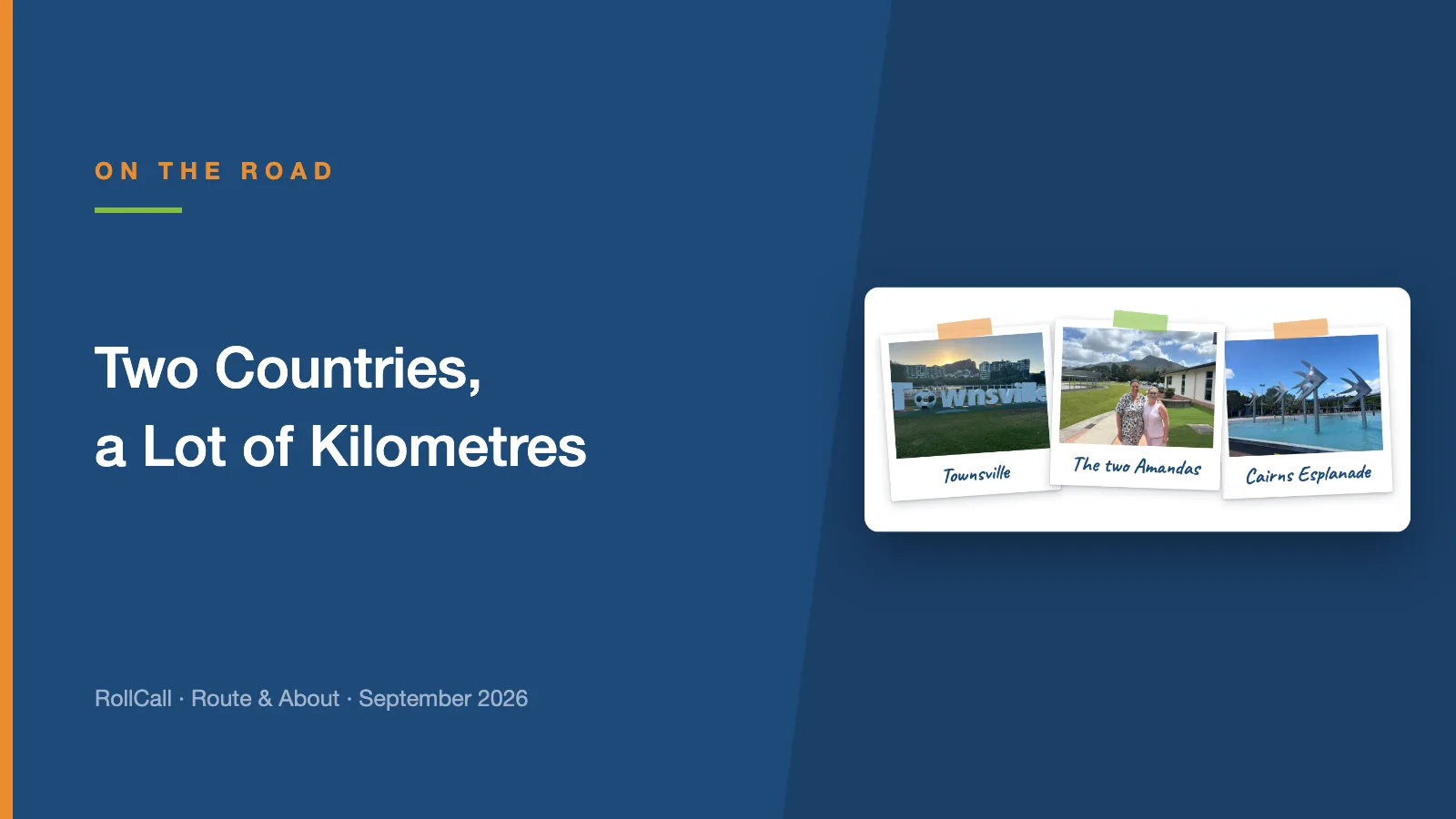
In the same week in September, Amanda visited our schools in Townsville and Cairns, and Dean took the RollCall stand to the SAHISA 2026 Conference in Durban.
Rollover has come a long way since you last tried it. If it went badly for you once, we understand why you have not been back - and here is why this is the year to look again.