
One parent login, CSV import modes and driver handover codes
Parents now set up one email-based account across all their RollCall schools, CSV imports gain Add, Update and Patch modes, and the Driver App adds handover codes and assistance numbers.
Please find below our release notes for new features and enhancements to the RollCall system.
Over the coming week, you will begin to see these new features roll out. These upgrades will make for a smoother and more secure experience for every user. We appreciate your ongoing support and collaboration.
New features and enhancements
Improved parent account setup and login experience
What's new:
Parent account setup and login has been redesigned to be simpler, more secure, and consistent across all schools using RollCall.
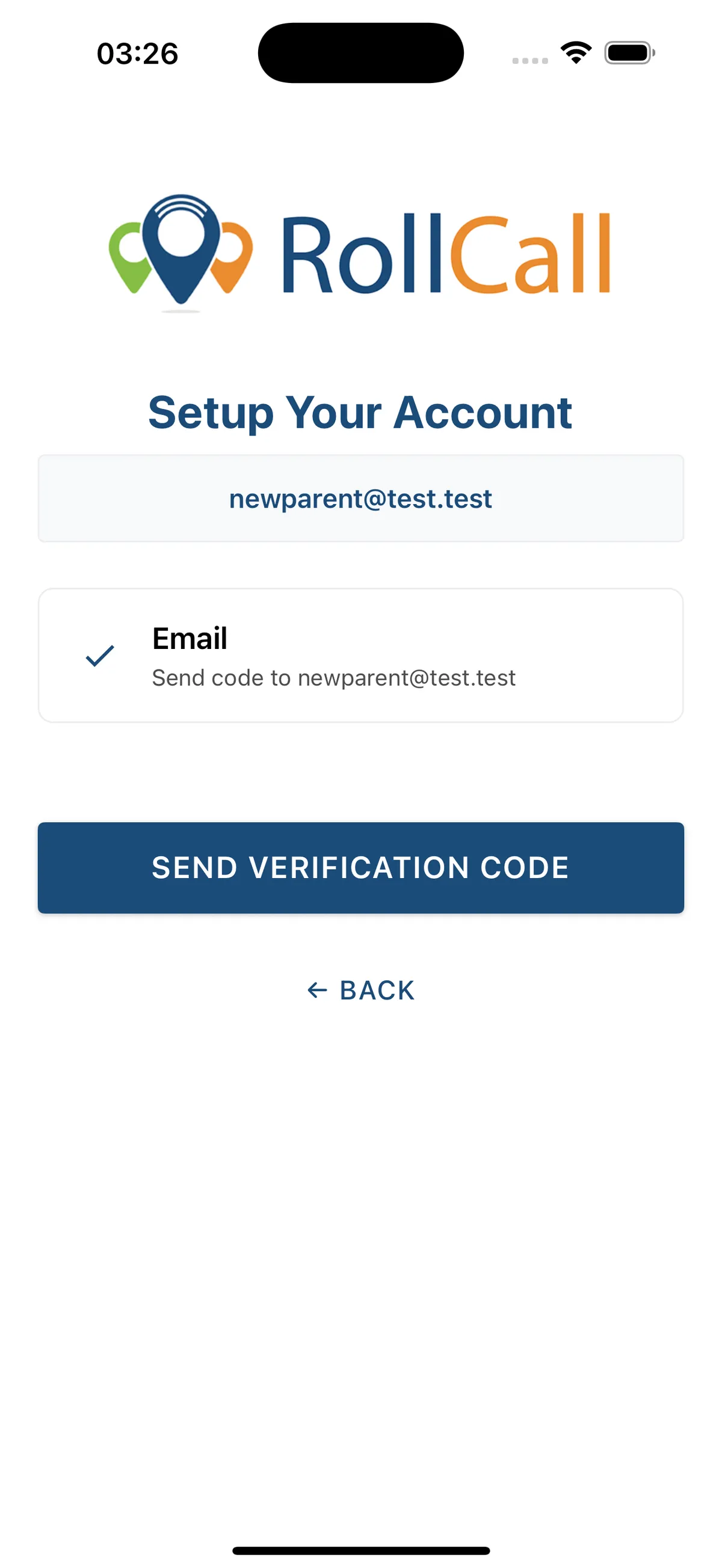
Parents now create one account using their email address, which works across all RollCall schools they are associated with. This replaces the previous reliance on school-issued welcome links and access tokens.
How parents get started:
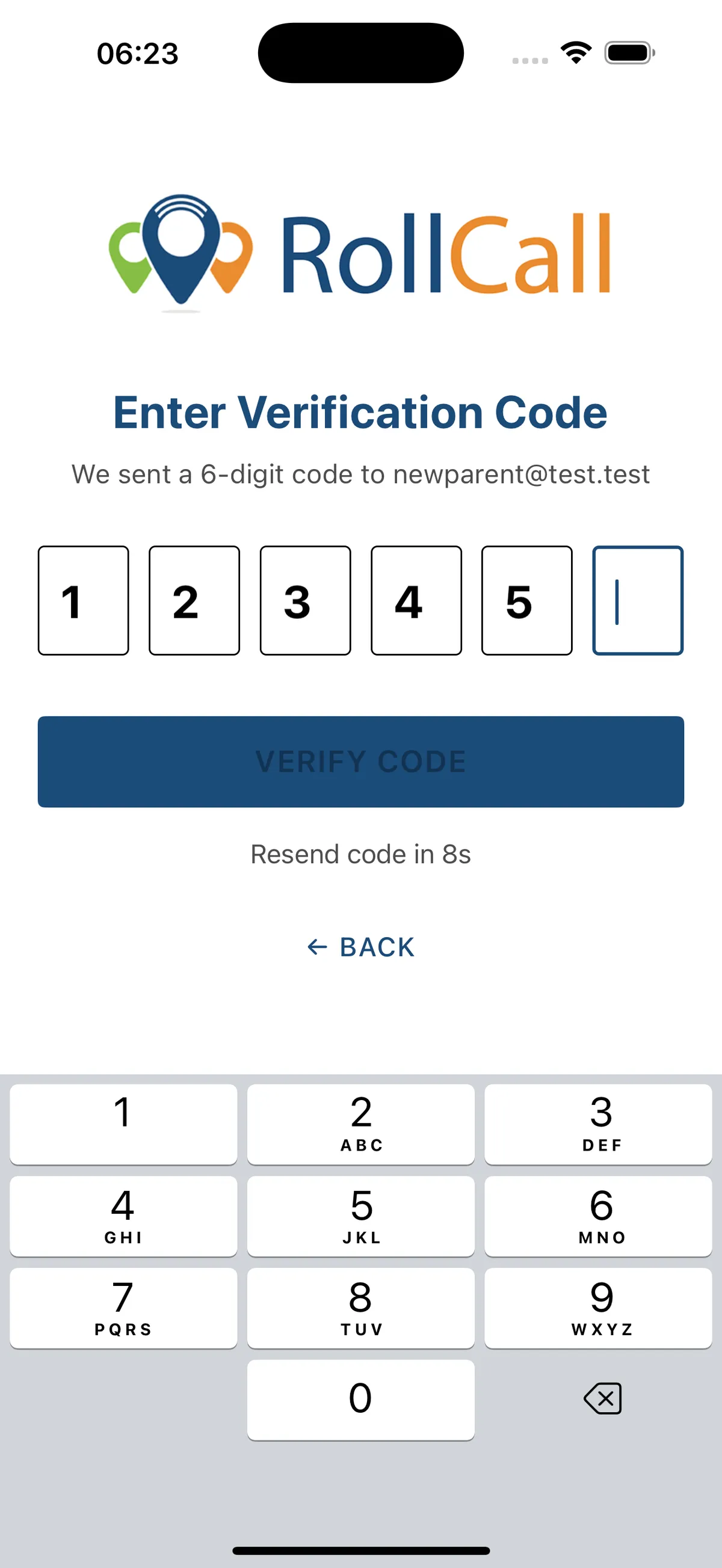
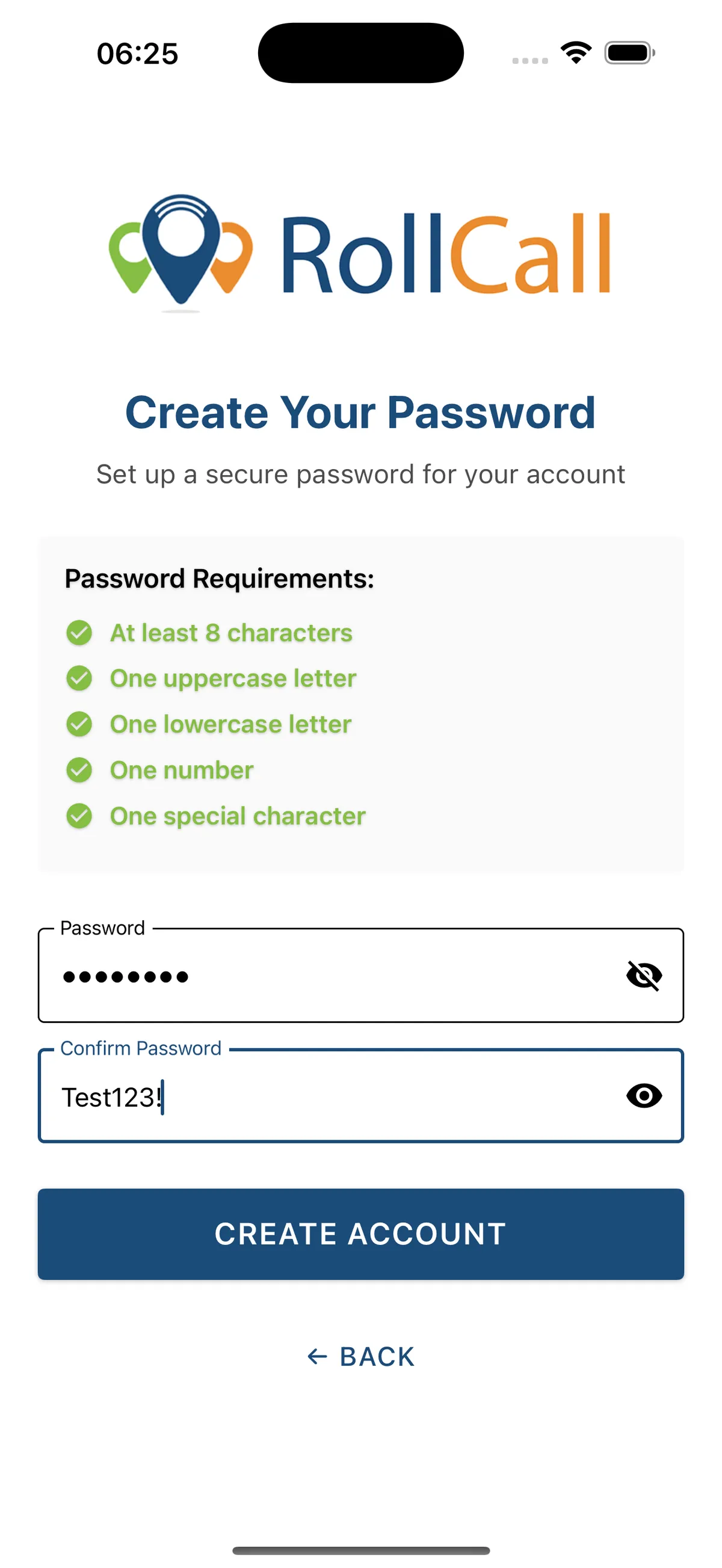
Parents can now set up their own account directly in the Parent App (mobile or web).
They:
- Enter their email address
- Verify their identity using a secure one-time passcode (OTP)
- Create a password
Once set up, the account works everywhere the parent is associated – no additional setup required.
A welcome email may still be sent by schools, but it is no longer required for parents to access the app.
Smarter login experience:
The login screen now starts with email only. Based on the schools linked to that email, the app automatically guides parents to the correct sign-in method.
This means:
- Parents are shown the right login option without needing to understand school-specific authentication
- Parents with children at multiple schools can use a single account
- The app handles differences between standard login and single sign-on (SSO) behind the scenes
What this means for parents:
- One account across all schools
- Faster, clearer setup
- Secure verification during first access
- No waiting for login links or reset emails
What this means for schools:
- No need to issue or manage welcome tokens
- No school codes required
- Fewer access and password-related support requests
- Reduced involvement in parent onboarding
Why this matters:
This change removes friction from parent onboarding while improving security. Parents can get access independently, and schools are no longer required to manage or troubleshoot account setup.
Simpler for parents. Less overhead for schools. Stronger security by default.
CSV import improvements (students and parents)
What's new:
CSV imports for students and parents have been upgraded with a clearer, step-by-step upload experience and more control over how data is applied.
Admins can now choose how their CSV affects existing records, making bulk updates safer and more predictable.
New import options:
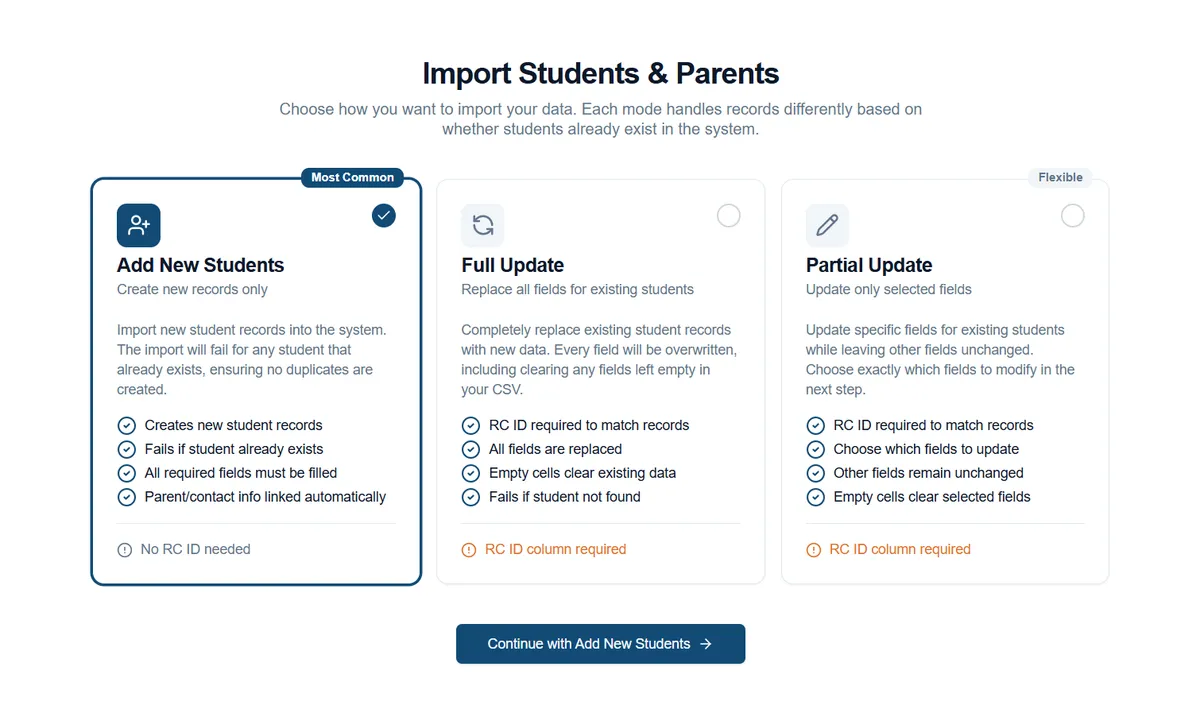
When uploading a CSV, you can now select one of three import modes:
- Add – Create new students and parents
Use this when adding brand new records. - Update – Replace existing records
Use this when you want to fully update existing students or parents. - Patch – Update specific fields only
Use this when you want to change selected information without touching the rest of the record.
Each mode clearly explains what it will do before the import runs.
What's improved:
- A guided upload flow that walks you through each step
- Clear validation before the import runs
- Better visibility of what will be added or changed
- More accurate import results and activity feedback
The new flow matches other familiar setup screens in the platform, making it easier to follow and harder to misconfigure.
Why this matters:
Bulk data updates are now clearer and safer. Schools have more confidence that imports will do exactly what they expect – whether they're adding new families, updating records, or making targeted changes.
Driver App: student handover codes (PAR / SIB / OWN)
What's new:
Schools can now apply handover requirements to younger students using Student Handover Codes, displayed clearly to drivers in the Driver App at drop-off.
This feature works in conjunction with the school's Underage Indicator, which defines which year levels require additional handover visibility.
How it works:
Each school sets an Underage Indicator at a chosen year level. This setting is global and applies to all students in that year level and below.
For students covered by the Underage Indicator, schools can assign one handover code per student to indicate the approved release method.
Available handover codes:
- PAR – Parent collection required
Student must be handed to a parent or guardian at the stop. - SIB – Sibling escort
Student travels on the bus with an older sibling. - OWN – Walks home independently
Student is approved to leave the bus independently.
Students above the Underage Indicator do not use handover codes and continue to follow existing usage.
What drivers see:
- Clear visual handover indicators for underage students where PAR or SIB is required
- Prominent guidance shown during scanning and drop-off
- Existing wrong stop alerts continue to apply where configured
This ensures drivers have the right information at the right time, without clutter for older students.
Why this matters:
This gives schools consistent, age-appropriate control over student handover rules, supports driver confidence at drop-off, and adds an extra layer of safety for younger children – while keeping the experience simple and predictable.
Parent App: stop arrival times
What's new:
Parents can now view the scheduled arrival time for their child's bus stop directly in the Parent App calendar.
Where it appears:
Parent App → Calendar → Scheduled trip details.
How it works:
Stop arrival times are shown exactly as set during route planning, giving parents a clear and consistent view of when the bus is expected at their stop.
Why this matters:
Parents have easy access to stop timing information in the app, making daily planning simpler and reducing the need to request timetables from the school.
Driver App: emergency assistance numbers
What's new:
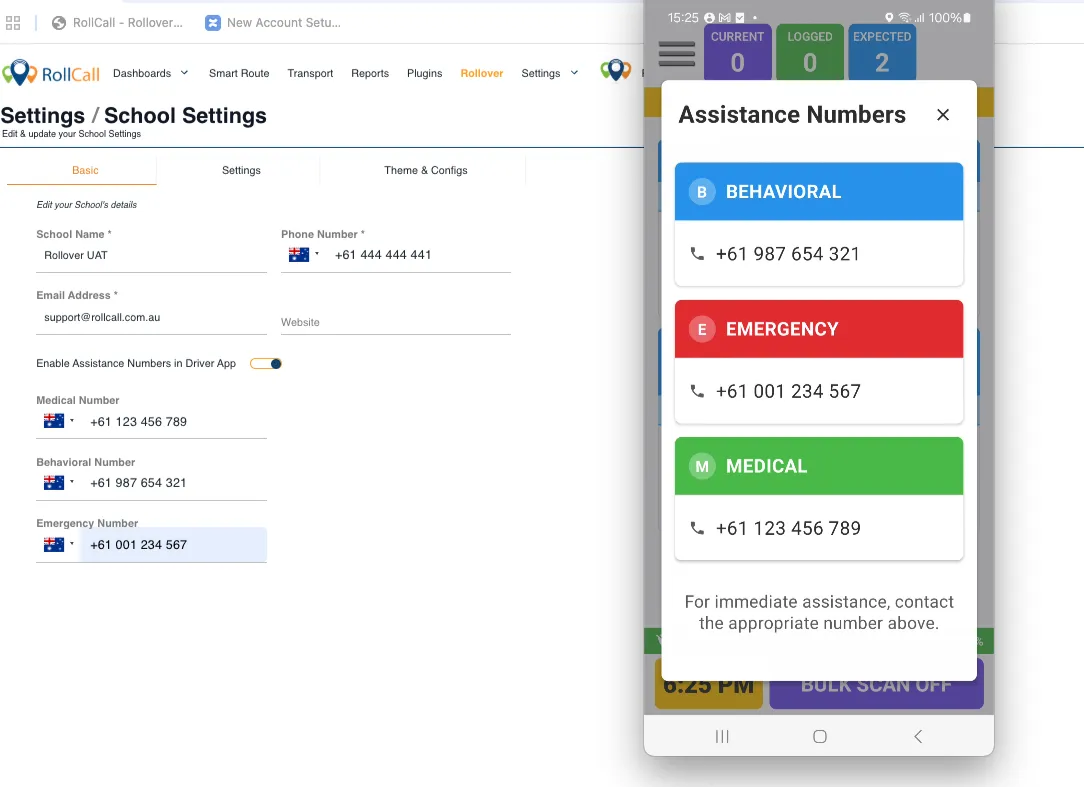
Drivers can now access important school contact numbers directly from the Driver App, giving them quick access to the right support when they need it.
How it works:
Schools can choose to make Assistance Numbers available to drivers and set the relevant contact details for their organisation. These numbers are grouped clearly by purpose so drivers can find the right contact quickly.
Available categories include:
- Behavioural
- Emergency
- Medical
Only the categories and numbers that a school chooses to configure will appear.
Where drivers find it:
Driver App → Main Menu → Assistance Numbers
The menu item only appears when assistance numbers have been enabled and at least one contact number has been set.
What drivers see:
- Clearly labelled contact numbers, grouped by category
- A clean, easy-to-read layout
- Access to the information throughout the route, even without an internet connection
Why this matters:
This feature helps drivers respond calmly and confidently during incidents by putting key school contacts in one consistent, easy-to-access place – without relying on memory, paper lists, or connectivity.
What's fixed?
We've made a number of behind-the-scenes fixes to improve reliability and consistency across the platform.
- Parent App login – New parents added via CSV import can now log in as expected.
- CSV imports – Importing sibling records no longer affects an existing parent's engaged status.
- Admin Console – Phone numbers now save and validate correctly.
- Driver App – Completed routes now reliably mark as complete on the system.
Tips and resources
Reports during peak hours – Report generation is paused during peak operational hours (7:00–9:00am and 3:00–6:00pm AEDT) to maintain system performance, and becomes available again outside these times.